English
 Arabic
 French
 Spanish
 Portuguese
 Deutsch
 Turkish
 Dutch
Dutch
 Italiano
 Russian
 Romaian
 Portuguese (Brazil)
 Greek
Greek
Banking Compliance Legal Services UAE for Businesses
Home |
2026-04-14 15:30:14
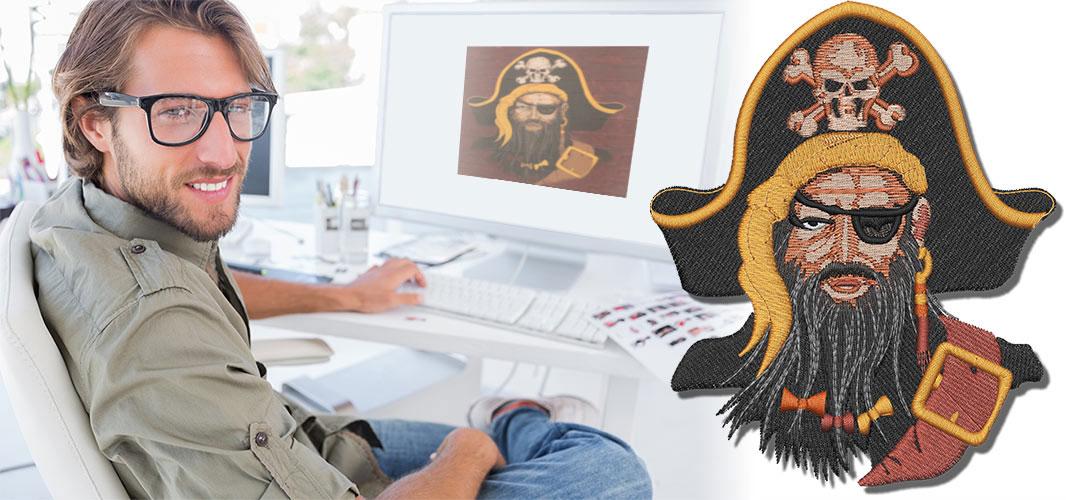
You found the perfect embroidery design online. It’s a stunning monogram, a cute animal, or maybe a floral border for a pillow. You download it, transfer it to your Brother machine, and… nothing. Or worse, your machine spits out a tangled mess of thread. The problem? Your design came in the wrong format. That’s where a Brother PES file Converter saves the day. Think of it as a translator. Your Brother machine speaks PES. But the design you grabbed might speak DST, JEF, or EXP. A converter takes that foreign language and rewrites it perfectly into PES. No more guessing. No more wasted thread. Let me walk you through the fastest, most reliable options out there—whether you want free tools, paid software, or something in between.
I see beginners do this all the time. They download a .dst file and rename it to .pes. Then they wonder why their machine still freaks out. Renaming does nothing. It’s like changing a recipe’s filename from “sushi” to “hamburger” and expecting a burger to appear. The internal data stays the same. Your machine still reads DST stitch commands, not PES commands. You need real conversion software that rebuilds the stitch data, color order, and thread trim signals into a proper PES structure.
If you want speed and reliability, Wilcom Hatch wins. No contest. Hatch is digitizing software, but it doubles as a phenomenal file converter. You drag and drop any common format—DST, JEF, EXP, VP3, CND, PCS—and hit “Save As” → PES. The conversion takes about three seconds. Hatch keeps your color sequence intact, preserves thread trims, and even maintains the design’s thumbnail preview for your Brother machine’s screen.
Why do I recommend Hatch over cheaper options? Because it never messes up stitch density. Some converters randomly shrink or stretch designs during conversion. Hatch doesn’t. What you see is what you stitch. The downside? Hatch costs money (around $200 for the basic version). But if you convert files weekly, that investment pays for itself in saved time and frustration.
Embrilliance Essentials costs about $100, which is half of Hatch’s price. It converts all major formats to PES reliably, though slightly slower than Hatch. The interface looks a bit dated, but it works. I like Embrilliance because it runs on both Windows and Mac. Many converters ignore Mac users entirely. Embrilliance doesn’t.
One catch: The Essentials version doesn’t let you edit stitch data. That’s fine for pure conversion. But if you want to tweak colors or reposition the design, you need the more expensive Embrilliance StitchArtist. For basic “turn this DST into PES” tasks, Essentials does the job cleanly.
Free sounds great. And honestly, free online converters work fine for simple designs. I tested three popular ones so you don’t have to.
Converter #1: EmbroideryOnline dot com. This site converts DST, JEF, and EXP to PES in under a minute. Upload, click convert, download. No email required. No watermark. The stitch quality held up well on a small 4-inch design. However, it messed up color order on a design with six colors. It assigned red to step one, blue to step two, then back to red. Annoying but fixable if you manually reassign colors on your machine.
Converter #2: ConvertEmbroidery dot com. Slower than EmbroideryOnline. Took about two minutes for a medium design. It preserved color order perfectly but dropped all thread trim commands. That left long jump stitches between color changes. You’ll have to manually trim those threads, which gets old fast.
Converter #3: SewWhat Pro’s free trial. Not strictly online, but you download a 30-day free trial of SewWhat Pro software. It converts unlimited files during the trial. No credit card needed. The conversion quality sits between Hatch and the online tools—good, but not perfect. It occasionally misplaces color change signals, so the machine stops in the middle of a color instead of at the end. Still, for free, it’s a steal.
My honest take on free converters? Use them for test stitches or simple one-color designs. Don’t rely on them for complex, multi-color projects you care about. They save money but cost you in thread trims and color headaches.
Here’s a trick most beginners don’t know. Some Brother machines with USB ports can read multiple formats directly, then save them as PES internally. For example, the Brother Innov-ís series reads DST and PES both. You plug in a USB with a DST file, open it on your machine, then use the “Save As” function to write a PES version back to the USB.
Why does this work? Because Brother builds a tiny converter into the machine’s firmware. Check your manual for “import formats” or “convert on machine.” Not every Brother model does this. But if yours does, you just saved yourself software money.
Not all converters are equal. Here’s what separates a good Brother PES converter from a bad one.
Preserve color sequence. A bad converter shuffles your colors randomly. A good one keeps red as red and blue as blue. Always check the converted file by previewing it on your machine’s screen before stitching.
Keep stitch density intact. Some converters double the stitch count, making your design stiff as cardboard. Others halve the density, leaving gaps. Run a small test stitch on scrap fabric to verify density looks right.
Maintain thread trim signals. When a design finishes one color and jumps to the next, a thread trim command cuts the thread automatically. Cheap converters drop these commands. You’ll see long, loose threads dragging across your fabric between color changes.
Don’t resize without permission. A reliable converter never scales your design unless you tell it to. Watch out for free tools that default to “fit to hoop” and shrink a 6-inch design to 4 inches.
Let me walk you through a real conversion so you see how easy it gets.
First, open Hatch. Click the “Import” button. Navigate to your DST file. The design appears on screen with all its colors and stitch paths intact.
Second, click “File” then “Save As.” A dropdown menu appears. Select “Brother PES (*.pes).”
Third, name your file. Choose a hoop size if prompted. Hit save.
That’s it. Three clicks. The whole process takes ten seconds. Then transfer that PES file to a USB stick, plug it into your Brother machine, and stitch with confidence.
You don’t need to be a computer whiz to convert embroidery files. A reliable Brother PES converter turns any design into a format your machine loves. Paid tools like Wilcom Hatch or Embrilliance Essentials offer speed, accuracy, and peace of mind. Free online converters work fine for simple, one-color projects but risk color order and thread trim issues. And don’t forget to check if your Brother machine converts files internally—that sneaky workaround saves you time and money.
Stop wrestling with file errors. Pick one converter from this list, test it on scrap fabric, and get back to doing what you love: making beautiful stitches. Your Brother machine is ready when you are.